Agar aap photo editing karte hain aur har small change ke liye multiple Lightroom tools manually use karna padta hai, to Adobe Lightroom ka latest AI update aapke workflow ko kaafi simple bana sakta hai.
Adobe Lightroom ke September 2026 desktop update mein Prompt to Edit feature introduce kiya gaya hai. Is feature ke through aap natural language mein bata sakte hain ke photo mein kya change karna hai aur Lightroom AI us instruction ke according edit generate karta hai.
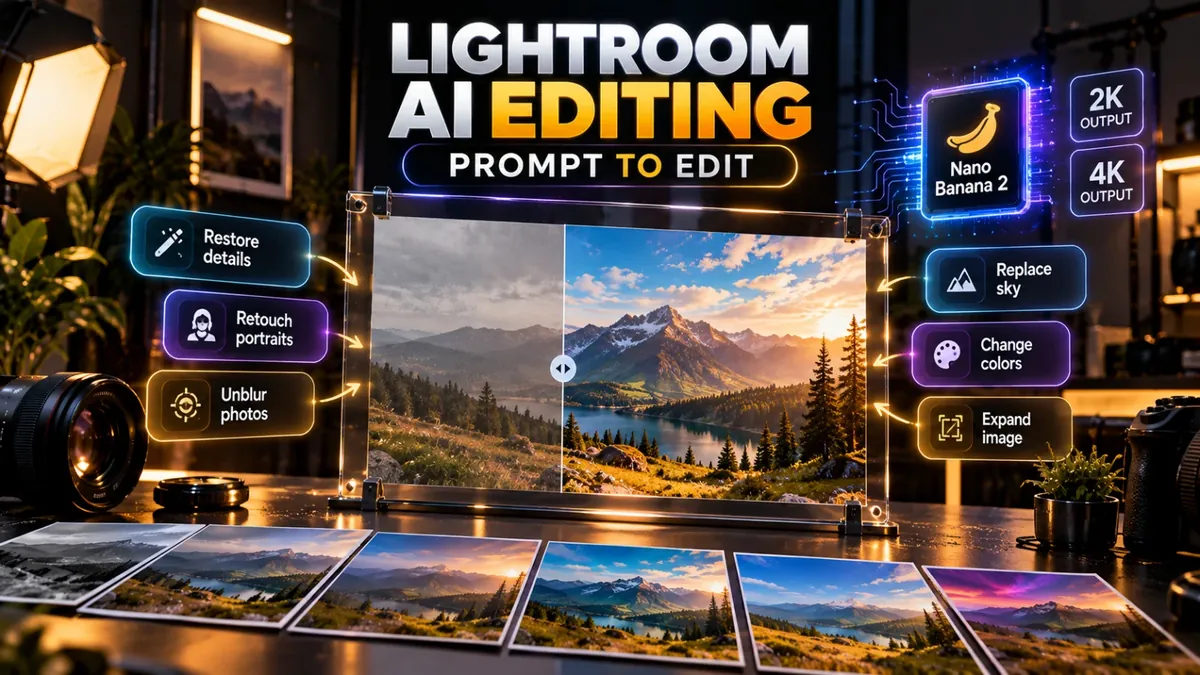
Interesting part yeh hai ke Lightroom ke Prompt to Edit workflow mein Google ka Nano Banana 2 bhi available hai, jise 2K ya 4K output ke liye select kiya ja sakta hai.
Lightroom Prompt to Edit Kya Hai?
Prompt to Edit Adobe Lightroom Desktop ka AI-powered early-access feature hai.
Traditional photo editing mein aapko different tools manually use karne padte hain. For example, sky change karne ke liye ek workflow, blur fix karne ke liye doosra, colour restoration ke liye different settings aur retouching ke liye multiple adjustments.
Prompt to Edit mein aap simply apni required edit ko text mein describe kar sakte hain.
Example:
Replace the cloudy sky with a realistic golden-hour sunset while keeping the subject and foreground unchanged.
AI aapki instruction ko interpret karke requested edit generate karta hai.
Nano Banana 2 Lightroom Mein Kya Kar Raha Hai?
Adobe ne Lightroom ke Prompt to Edit workflow mein Nano Banana 2 ko partner generative AI model ke taur par include kiya hai.
Adobe ke official documentation ke mutabiq Output Settings mein user Nano Banana 2 (2K) ya Nano Banana 2 (4K) select kar sakta hai.
Iska matlab yeh hai ke aap Lightroom ke andar hi text instructions ke through more complex generative edits experiment kar sakte hain, without switching to a completely separate AI image-editing application.
Lightroom AI Editing Kaise Karein?
-
Adobe Lightroom Desktop update karein.
Ensure karein ke aap latest available desktop version use kar rahe hain. -
Apni photo open karein.
Lightroom mein photo ko Detail View mein open karein. -
Prompt to Edit select karein.
Left-side panel se Prompt to Edit option open karein. -
Example prompt ya apna prompt choose karein.
Lightroom kuch ready-made prompts provide karta hai, ya aap apni custom instruction likh sakte hain. -
Editing instruction clearly likhein.
Example: “Restore the old photo, remove dust and scratches, improve facial detail and preserve the original appearance.” -
Nano Banana 2 select karein.
Output Settings mein Nano Banana 2 ka 2K ya 4K option choose karein, agar aapke account mein available ho. -
Generate par click karein.
Lightroom AI-generated edit process karega aur result ko photo workflow mein save karega.
Kaun Se Photo Edits AI Se Kar Sakte Hain?
Adobe ke example workflows ko dekhte hue Prompt to Edit ka use multiple types ke complex edits ke liye kiya ja sakta hai.
- Old photos ko restore karna
- Dust aur scratches remove karna
- Blurred photos ko improve karna
- Black-and-white images ko colourize karna
- Sky replacement
- Portrait retouching
- Creative transformations
- Complex visual adjustments
Yahan ek important point hai: AI ko clear instructions dene se results generally easier to control hote hain. “Make it better” jaisi vague instruction ke bajaye specific editing requirements likhna better approach hai.
Creators Aur Freelancers Ke Liye Useful Kyun Hai?
Content creators aur freelancers ke liye sabse important benefit workflow speed ho sakta hai.
Suppose ek freelancer ko client ki 50 product photos edit karni hain. Har image par manually multiple adjustments karne ke bajaye AI-assisted workflows repetitive editing process ko faster banane mein help kar sakte hain.
Similarly, photographers old images restore karne, social media creatives prepare karne aur quick variations test karne ke liye Prompt to Edit explore kar sakte hain.
Kya Lightroom AI Editing Free Hai?
Yahan thoda careful rehna zaroori hai. Prompt to Edit ek Lightroom Desktop early-access feature hai, aur generative AI features Adobe ke generative-credit system se linked ho sakte hain.
Adobe ke documentation mein Prompt to Edit panel ke andar remaining credit balance check karne ka option bhi diya gaya hai.
Adobe ki plan pricing country aur currency ke according change hoti hai, isliye Pakistan ke liye random fixed price assume karna correct nahi hoga. Agar aap Lightroom ya Creative Cloud lena chahte hain to apne Adobe account ke region mein current pricing check karein.
Nano Banana 2 Lightroom Mein Use Karte Waqt Important Tip
AI editing ka matlab yeh nahi ke original photo ko completely replace karna chahiye.
Professional workflow mein original + AI-generated result dono preserve karna better approach hai. Important client work mein generated result ko manually inspect karein, especially faces, text, hands, product details aur background edges.
AI kabhi kabhi visually convincing result generate kar sakta hai jo technically incorrect ho. Isliye final export se pehle human review zaroor karein.
Final Thoughts
Lightroom Prompt to Edit photo editing ko traditional sliders aur manual tools se ek more conversational workflow ki taraf le ja raha hai.
Sabse interesting part creators ke liye yeh hai ke Nano Banana 2 ko Lightroom ke andar hi 2K aur 4K generative editing workflow ke liye select kiya ja sakta hai.
Agar aap photographer, content creator, graphic designer ya freelancer hain, to latest Lightroom update ko test karna worth exploring hai. Lekin AI ko final editor samajhne ke bajaye creative assistant ke taur par use karna zyada professional approach hai.
AI, editing, design aur productivity tools explore karna chahte hain?
Saste Tools ke available digital tools check karein →