Photo Metadata: How to Check and Remove GPS Location from Photos
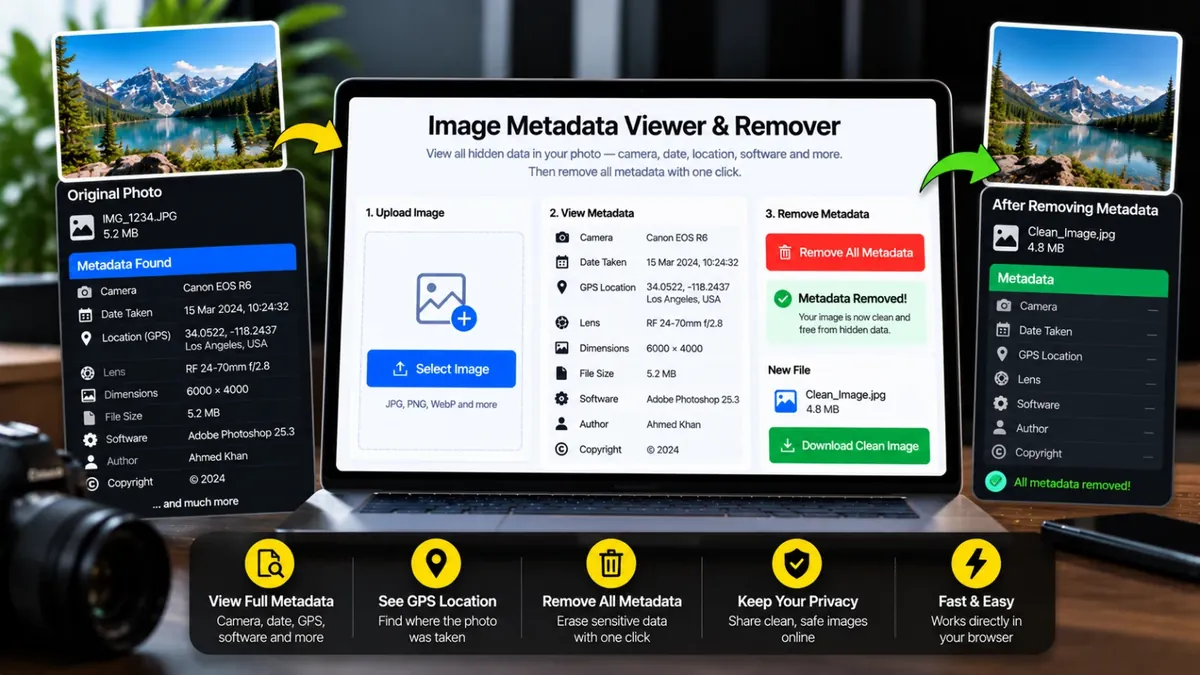
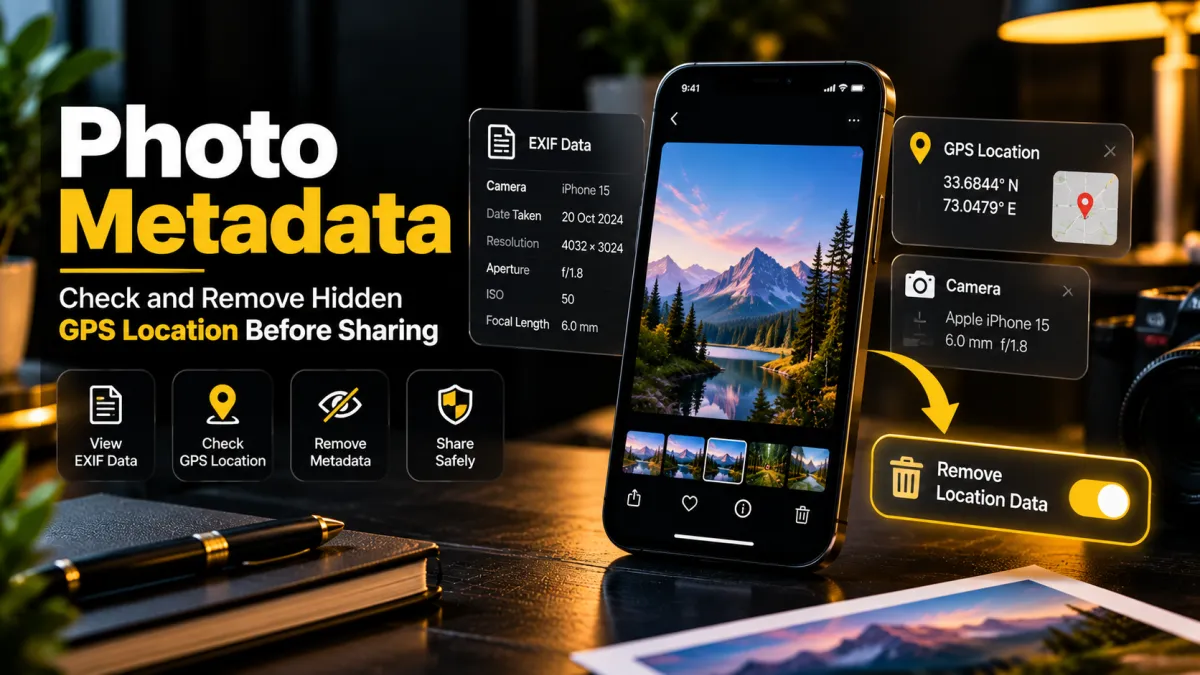
When you take a photo with a smartphone or camera, the image may contain more information than the picture itself. This hidden information is called metadata. Depending on the device, settings and file format, it can include the camera model, date and time, image dimensions, editing software and sometimes GPS coordinates.
Before sharing a photo publicly, it is worth checking what information is embedded in the file. This guide explains how photo metadata works, how to inspect it and how to create a copy with metadata removed.
What Is Photo Metadata?
Photo metadata is information stored alongside an image. EXIF is a common metadata standard used by digital cameras and smartphones. An image may also contain other metadata formats, depending on how it was created or edited.
Metadata can be useful for organizing photographs, understanding camera settings and sorting images by date. However, certain fields may reveal details you did not intend to share.
What Information Can a Photo Contain?
- Device information: camera or phone model.
- Date and time: when the photo was captured, if recorded.
- GPS coordinates: location data, if location tagging was enabled.
- Camera settings: exposure, focal length and other technical details.
- Software information: an application used to edit or export the image.
Not every image contains all these fields. Metadata availability depends on the device, camera settings, file format and any processing performed by apps or platforms.
Why Should You Check Metadata Before Sharing?
If a photo contains GPS coordinates, those coordinates may reveal where it was taken. That can be sensitive when sharing images of your home, workplace or other private locations. Camera and timestamp information can also reveal more context than you intended.
Metadata is only one part of image privacy. The visible content of a photo may also reveal a location, document, reflection or personal detail, so review the image itself before publishing it.
How to Check Photo Metadata Online
- Open the Saste Tools Image Metadata Viewer & Remover.
- Select a photo from your device or use the available upload area.
- Review the metadata fields shown by the tool.
- Look for location-related fields such as GPS, along with date, device and software details.
- Decide whether you want to keep the original file or create a clean copy.
Open the free Image Metadata Viewer & Remover.
How to Remove GPS and Other Metadata
If you want to share a photo without its embedded metadata, use a tool that creates a new copy without the relevant metadata fields.
- Open the Saste Tools metadata tool.
- Choose your image and inspect its current metadata.
- Open the metadata removal option.
- Select the available output format and quality settings.
- Create the clean copy and download it.
- When privacy is important, inspect the exported file again to verify that the fields you wanted removed are no longer present.
The Saste Tools tool processes images in your browser, so the image is not uploaded to its server for this operation. Keep your original file if you may need its original metadata later.
Check and remove photo metadata for free.
Does Sharing an Image on Social Media Remove Metadata?
Some services may strip or transform metadata when images are uploaded, but behavior can differ by platform, file type and sharing method. Do not assume that every service removes every sensitive field. If the information matters, remove it yourself before sharing and verify the copy.
Metadata Removal vs. Turning Off Location Tagging
Turning off camera location permissions can help prevent GPS information from being recorded in future photos. Removing metadata from an existing image addresses information already stored in that file. These are different steps, and you may choose to use both.
Important Limitations
- Removing metadata does not hide information visibly shown in the image.
- Metadata removal does not delete copies already shared elsewhere.
- Some formats or apps may add metadata again when an image is edited or exported.
- Always check the exported copy if you need to confirm that specific fields have been removed.
Frequently Asked Questions
Can a photo reveal my location?
It can if the file contains GPS coordinates. The photo's visible content may also reveal a location, even when metadata is absent.
What does EXIF mean?
EXIF is a metadata standard commonly used by digital cameras and smartphones to store image-related information, such as camera settings and sometimes location data.
Will removing metadata reduce image quality?
The result depends on how the clean copy is created and which output format and quality settings you choose. Review the output and retain your original image.
Is metadata removal a complete privacy solution?
No. It can remove embedded information from a file, but it cannot conceal visible details in the photo or remove images that have already been shared.
Final Thoughts
Photo metadata is useful, but it can sometimes contain information you do not want to share publicly. Before posting personal photos online, check the embedded data, remove fields you do not need and review the final image.
Want to inspect a photo now? Try the free Saste Tools Image Metadata Viewer & Remover.